
Latest Version | MagicPath 2.0 released in mid-May puts humans & agents in a shared workspace |
Key Features | Prompt-to-UI, parallel AI agents on canvas, and external agent integration |
Pricing | - Free: 120 credits/mo, and 125 external agent calls/week |
Pros & Cons | Great agent workflow and free code export, but credits deplete fast and generation is slow. |
Alternatives |
What is MagicPath AI?

MagicPath is an AI-powered design tool that lets you generate front-end UI screens and components from text prompts on an infinite canvas. The design is editable with AI and manually as well, plus can be exported as image, Figma, and code.
The release of MagicPath 2.0
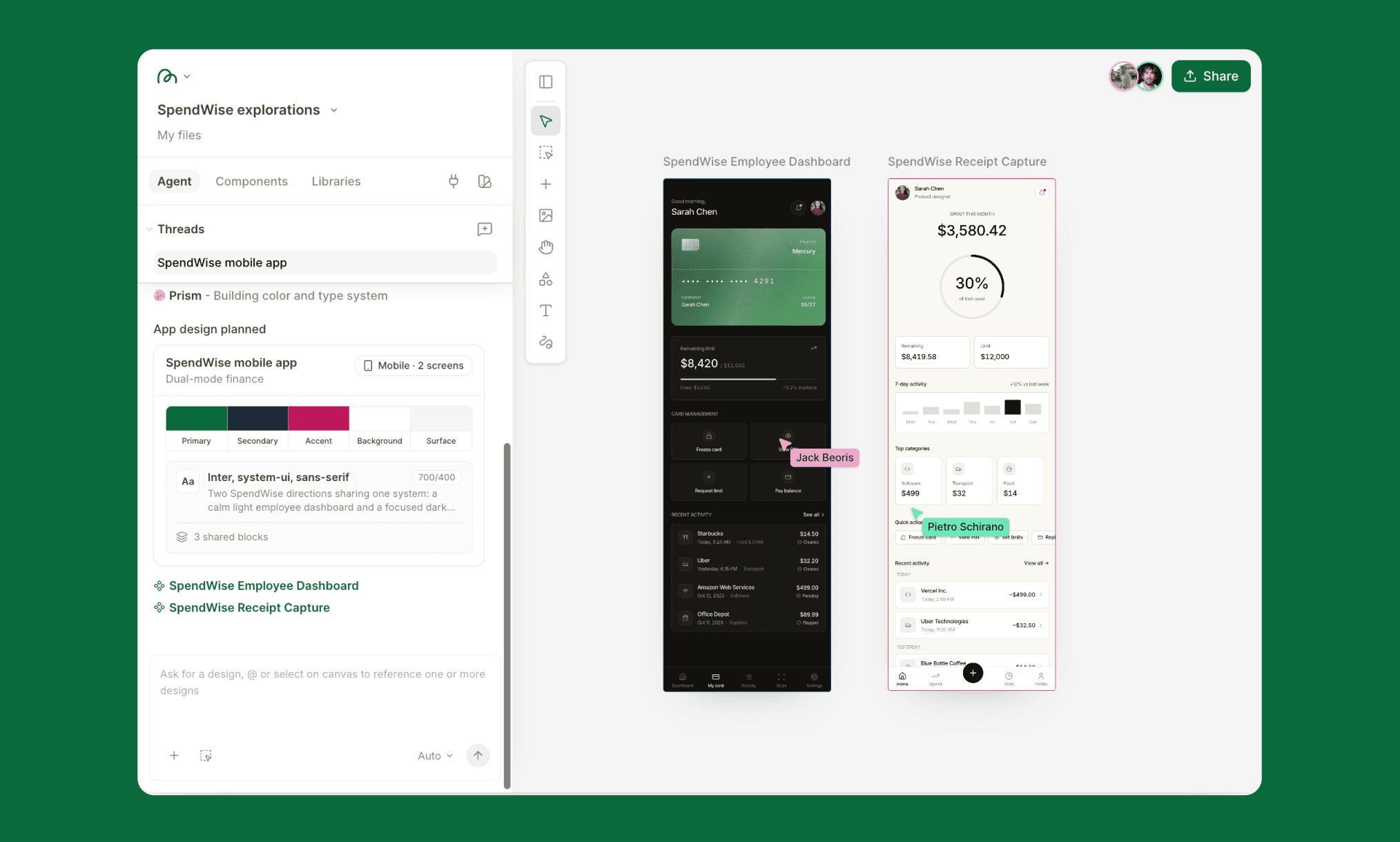
Released in mid-May 2026, MagicPath 2.0 repositions itself as an AI UI Design tool with a multiplayer canvas where humans and AI agents collaborate in real time.
In addition to the editing (manual and AI) and export features that classic MagicPath offered, the 2.0 version allows adding AI coding agents and GitHub for a more powerful design-to-code workflow.
Do existing users need to take action with the MagicPath 2.0 update?
No. MagicPath 2.0 is a platform-wide upgrade, not a separate product. Your existing account, projects, and plan carry over automatically.
Is there a pricing change in the latest MagicPath 2.0?
Yes. Free jumped from 30 to 120 credits/month. Pro went from $20/month for 200 credits to $21/month (annual) for 600 credits.
However, the way those credits are consumed is not the same. Earlier, it was 1 credit per component; now, it’s consumed per agent effort (like Replit Pricing) and may cost more in some cases.
Can the older MagicPath AI still be used?
No. There's no legacy version to fall back on. MagicPath 2.0 is the product now.
If you were used to the older, more straightforward canvas, the new one will still feel intuitive enough with the latest AI UI agent-driven interface.
Read Complete Review of MagicPatterns >
Testing MagicPath 2.0 UI Design
Sign in and choose what to do
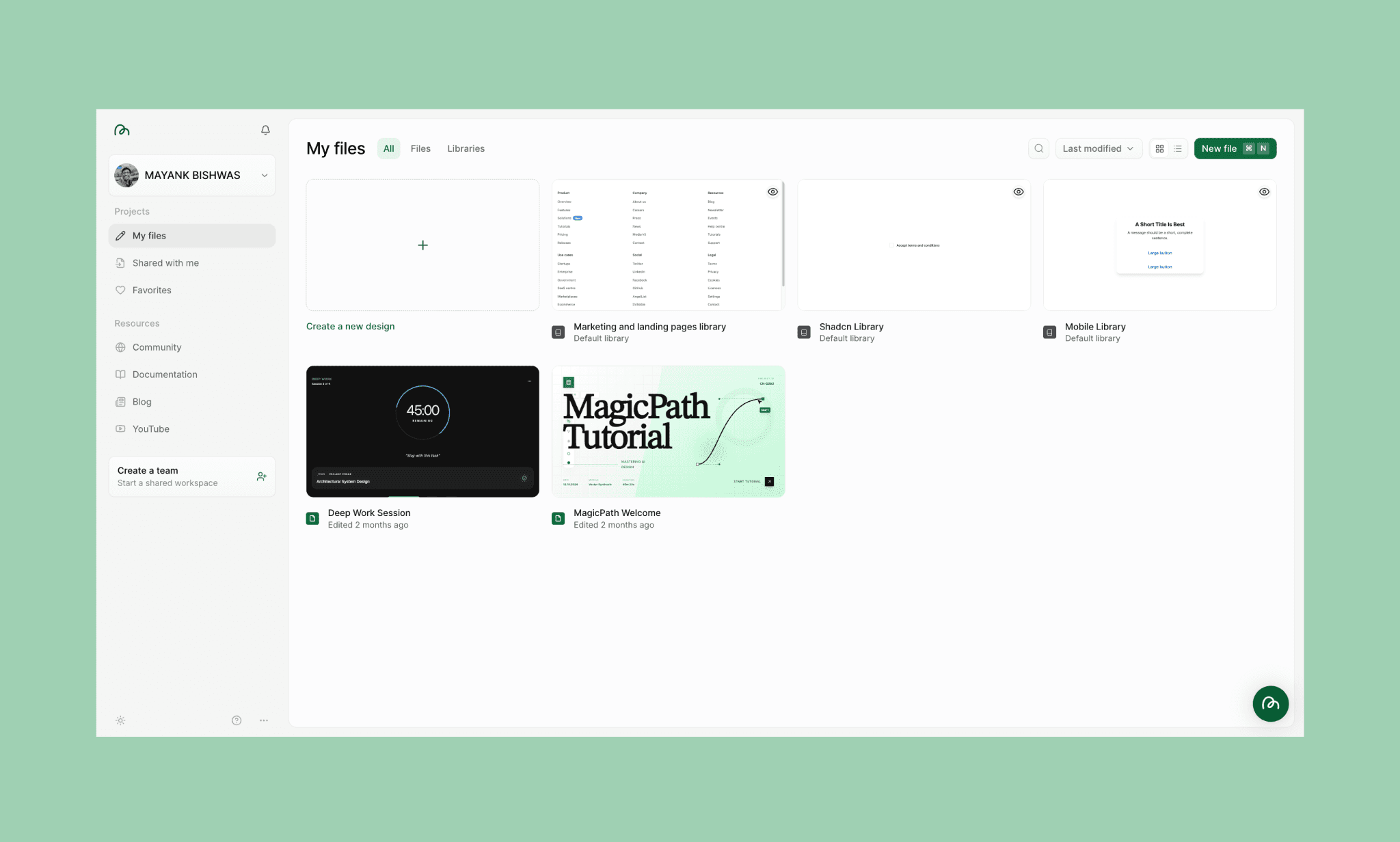
Logging into MagicPath is pretty straightforward. It’s free and no credit card is required. The dashboard opens up to its library of UI and AI-editable app design assets, followed by your past projects and tutorials.
Creating a new design from scratch
You can start off a designing with MagicPath AI in three ways:
i) Import Figma design to edit with AI
ii) Convert a screenshot to turn into editable UI using MagicPath extension
iii) Simply type text prompt to get UI
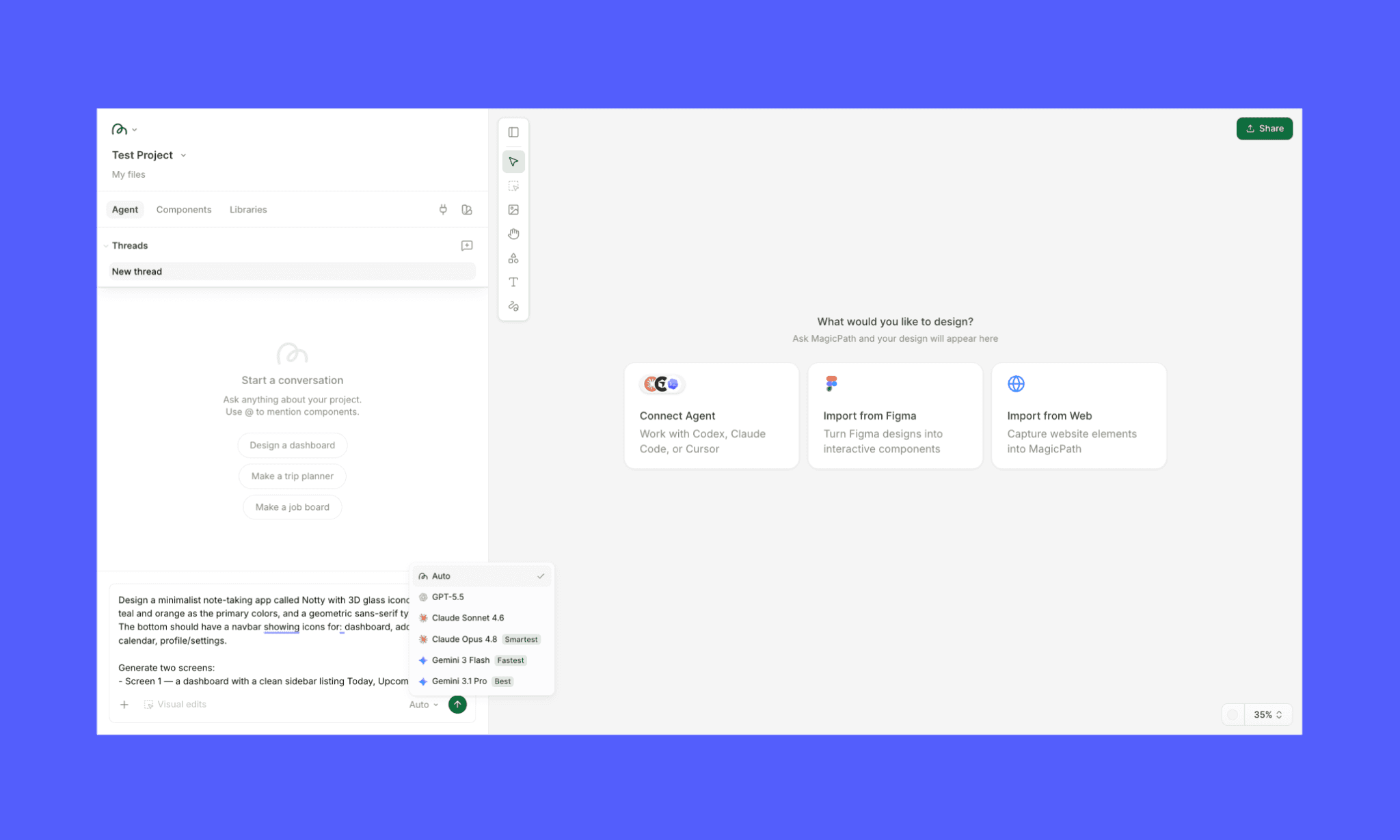
It also shows a new way to start a project: code-to-design. By connecting an AI coding agent (like Claude & Codex) or GitHub.
I went with the classic text-to-UI way by asking it to create a minimalist note-taking app (like Things 3 UI) using the ‘Auto’ model.
My prompt on MagicPath 2.0
"Design a minimalist note-taking app called Notty with 3D glass iconography, teal and orange as the primary colors, and a geometric sans-serif typeface. The bottom should have a navbar showing icons for: dashboard, add note, calendar, profile/settings.
Generate two screens:
- Screen 1 — a dashboard with a clean sidebar listing Today, Upcoming, and Anytime sections alongside a task list in the main area.
- Screen 2 — a task detail view showing title, notes field, due date, and tags."
Review the UI generated by MagicPath 2.0
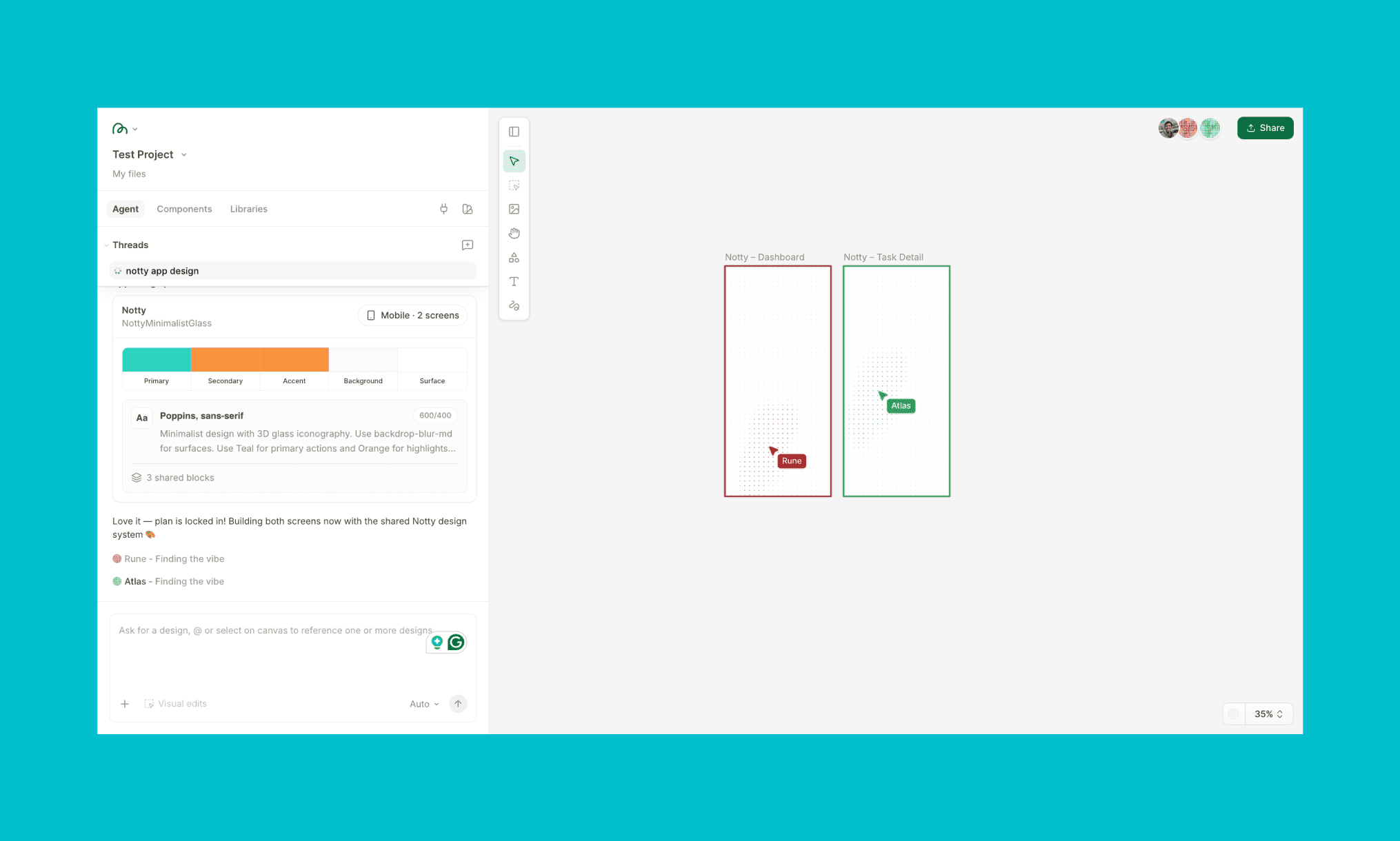
Let me start with how pleasantly surprised I was of the process of MagicPath 2.0 design agents. First it created the design system, then put two agents in action - one for each screen - while copy of thinking box updated what’s going on.
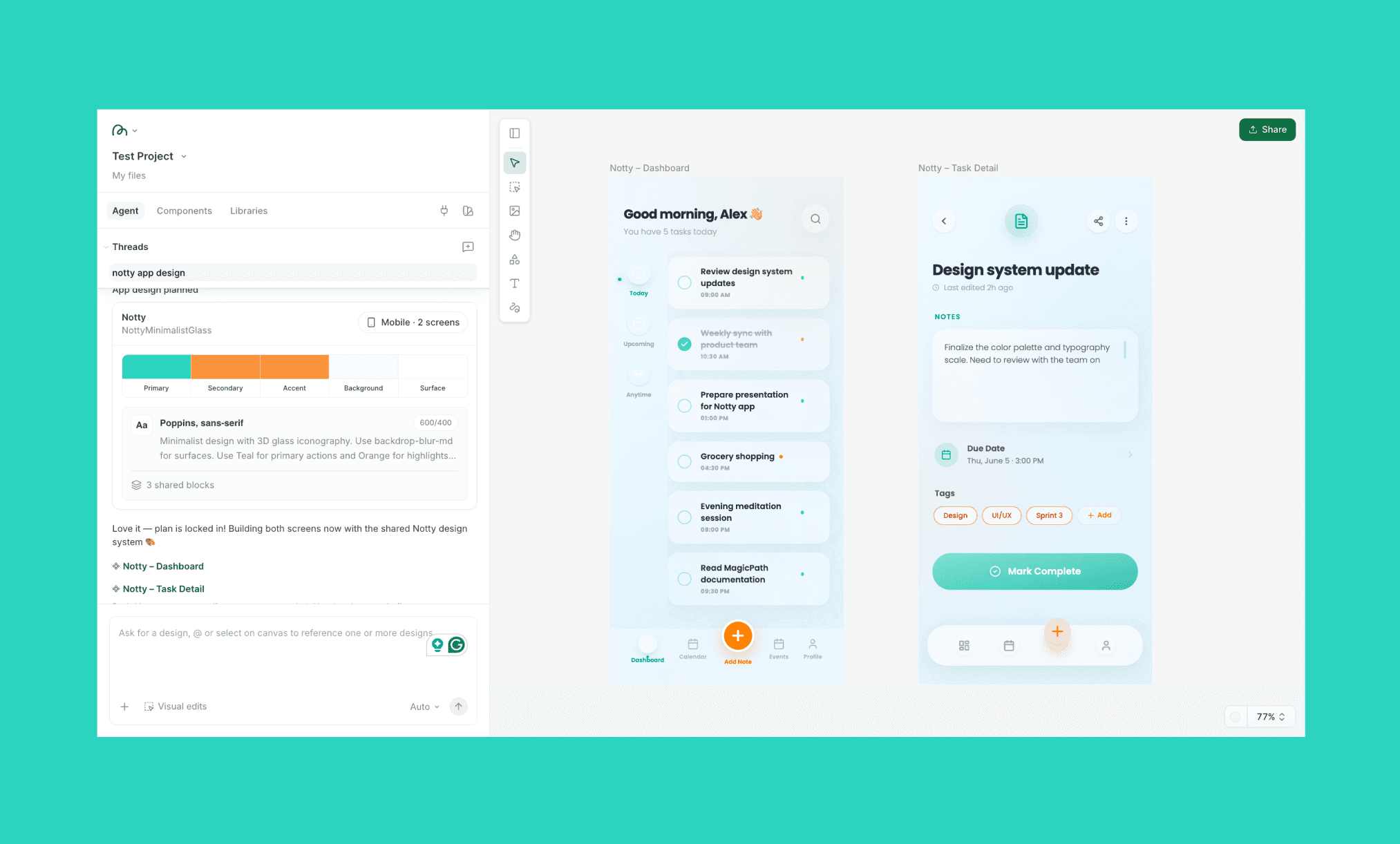
The UI output looks neat at first glance. Especially the Screen 1 i.e. the dashboard with its intelligent stacking of Today, Upcoming & Anytime tasks. Both the screens include the components I had requested. But looking at it deeply, you see the issues one-by-one.
The three stacked icons in Screen 1 appear invisible because of their white color.
It took my idea of teal as the primary color too seriously and painted the whole thing in a teal tinge.
All the icons are plain 2D instead of my ask for 3D ones; instead I got floating icons with deep drop shadow (see Notepad icon in the screen 2 header).
More disappointing was the fact that the screens had two different bottom nav bars.
So, I have mixed feelings about the design, but expectations remain high.
The two screens consumed 10 credits, and took ~2 minutes to be generated. I must admit it’s quite costly and somewhat slow to the industry standard.
How to Generate Unique UI with Lovable >
Making edits in the UI with AI
MagicPath 2.0 offers two ways to edit the UI in its canvas:
i) Visual edit that does not cost any credit
ii) AI edit that costs credit based on agent’s effort
Manual edit
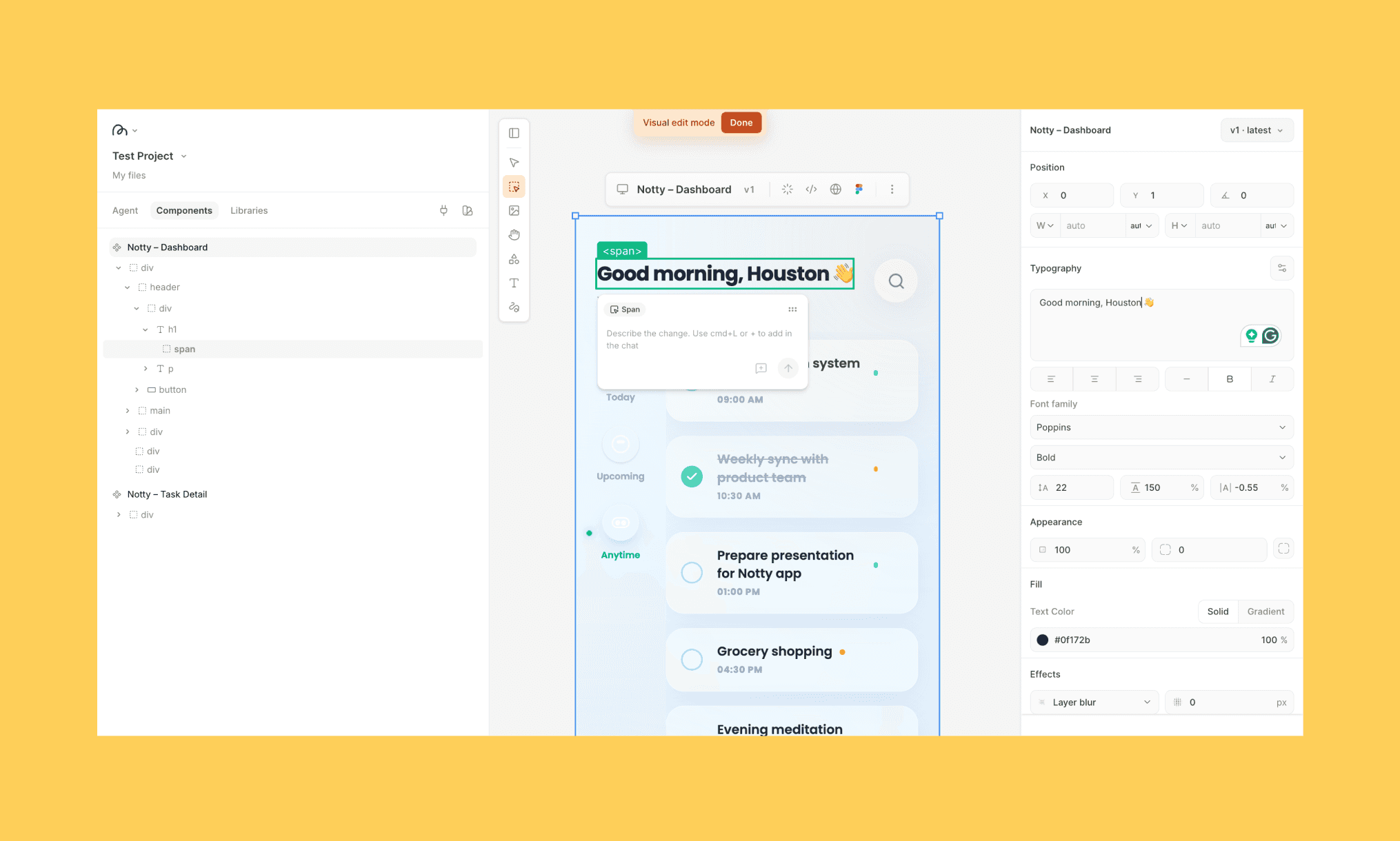
Going in the Visual Edit mode, opens a Figma-like portal. Here you can edit text, move elements, change color and more. It was quite intuitive and also helpful in saving credits.
AI edit
In the AI edit, I asked it to fix the most glaring issue in the UI I found viz.
“Make the bottom nav bar of Screen 1 the same as that of Screen 2.”
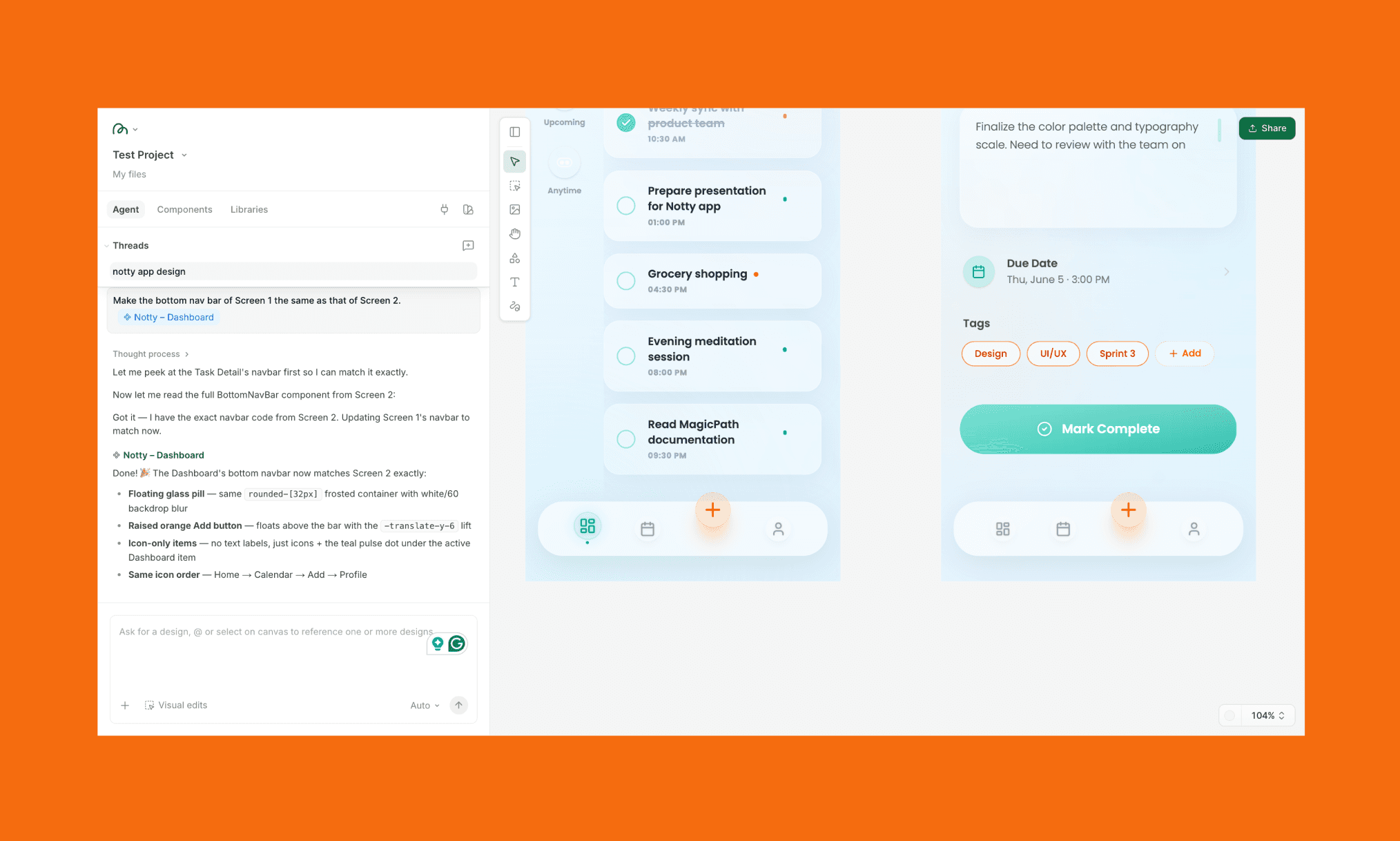
Thankfully, this time it nailed it. Even added a highlight in the dashboard icon, which makes sense. And it ate up 5 credits for a single edit!
At this point, I started to feel that MagicPath 2.0 is more of a rigorous PM than an indulgent designer.
My testing of Freepik (now Magnific) AI >
Sharing & exporting the design
Sharing design in MagicPath 2.0
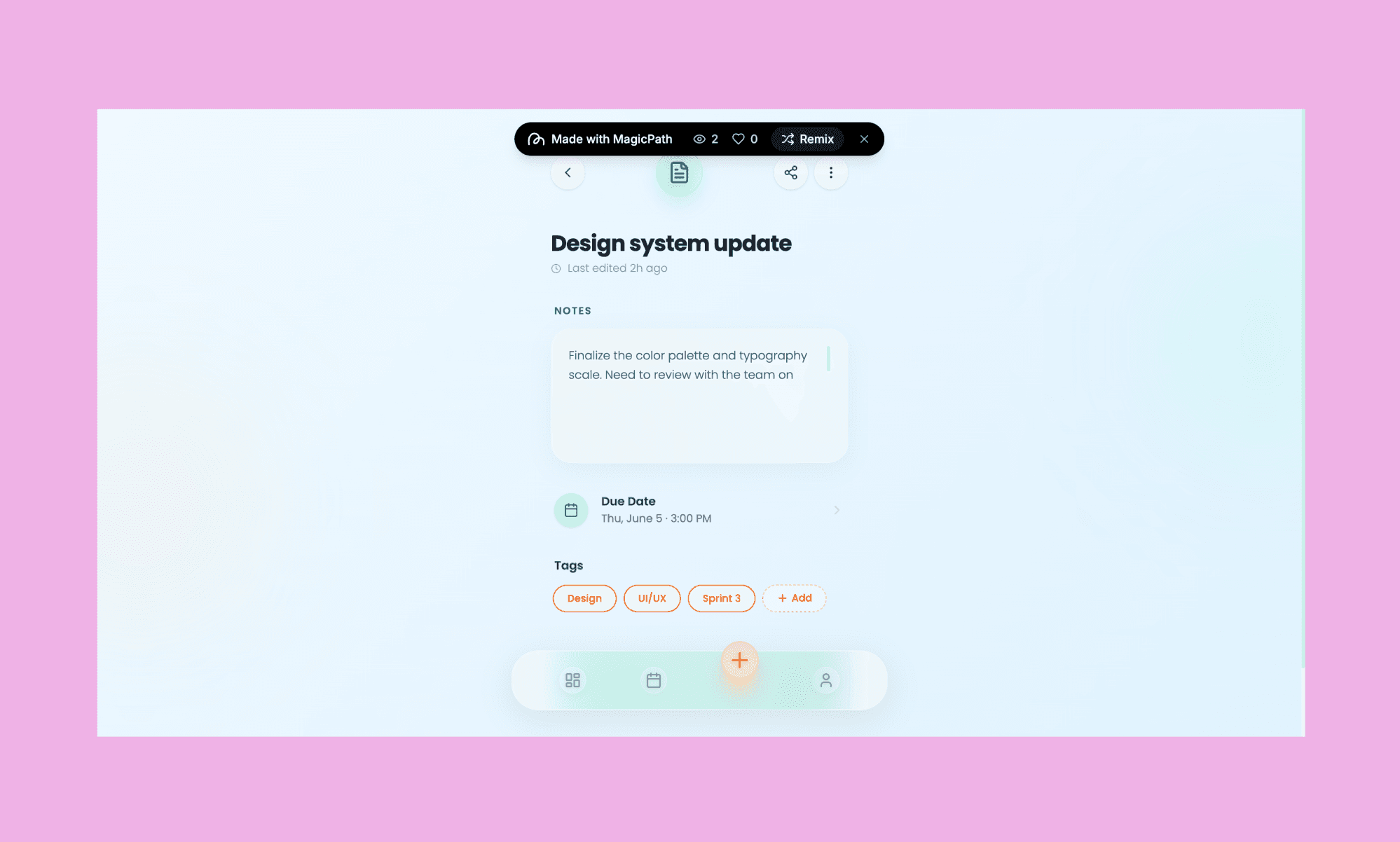
i) Preview design - You get a one-click preview in a new window. I liked it because you can scroll some elements too and see some interactions.
i) Share as link - Which is pretty straightforward. It can be used to view and copy the design. Not collaborate in real-time like you would on Figma.
Exporting design in MagicPath 2.0
i) Export as image - You can see the option in the drop down of the ellipsis when you select a board. However, it did NOT seem to work. I tried a couple of times.
ii) Export code - In one click you can view and copy frontend code as React + TypeScript + Tailwind project. A downloadable codebase is also there. Plus, you can also send it directly to Cursor, Codex, or Claude Code from within MagicPath, which is a nice touch for agentic workflows.
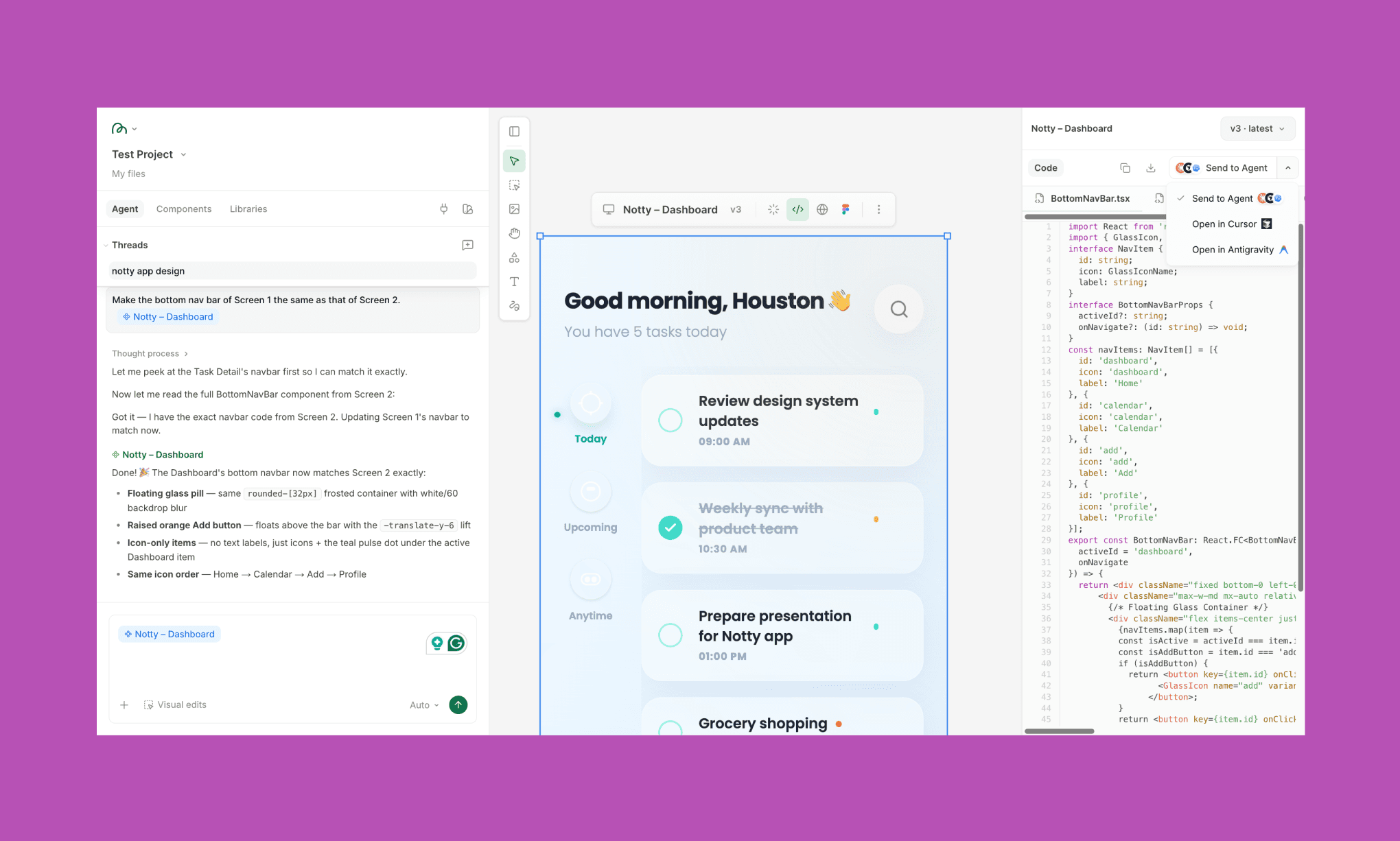
The code export itself costs no credits.
My favorite Design-to-code Tools in 2026 >
iii) Export as Figma – This option is visible right on top of the bar that appears when you select a design board. Click it and in seconds your clipboard is ready with all components and can be pasted directly in your Figma to be edited further.
I found this workflow of exporting design to Figma smoother than most AI design tools.
New Features in MagicPath 2.0
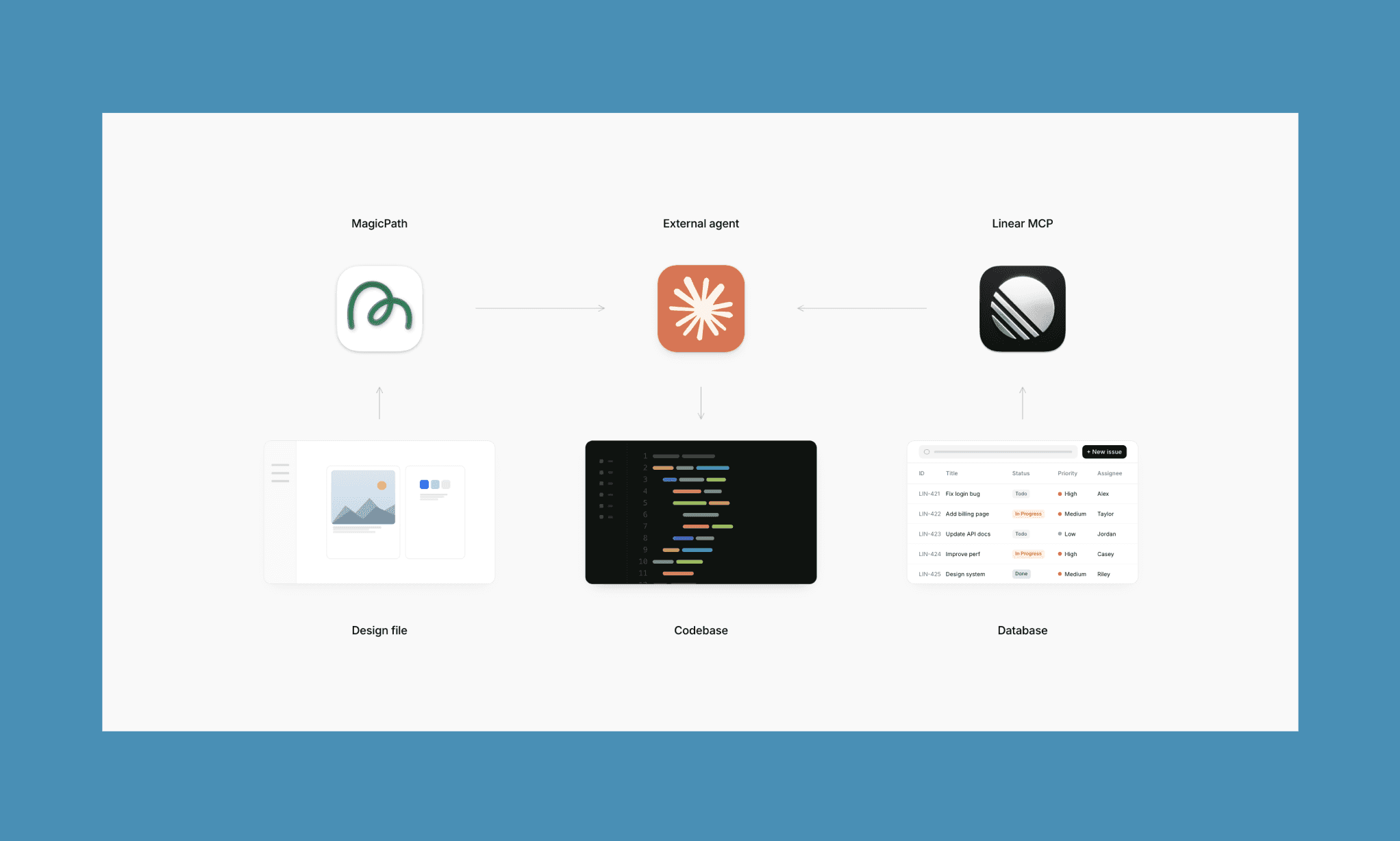
Humans and agents collab: One prompt kicks off a full project where multiple agents work in parallel on the canvas alongside you. Each building a screen with a shared design system, in real time.
Canvas as context: Anything on your canvas including designs, screenshots, moodboards, references, etc. becomes reference points for agents.
External agents as extra hands: Connect Claude Code, Codex, or Cursor directly to your MagicPath project. They read the design file, build the codebase, and sync back.
Works while you're away: MagicPath runs in the background via the Chrome extension or your terminal. Capture any live website into an editable design.
Design-Code two-way sync: Push your canvas designs straight into your repo as components. Pull from your codebase back into the canvas.
Feature list of Google Stitch 2.0 >
Latest MagicPath Pricing
MagicPath Free Plan
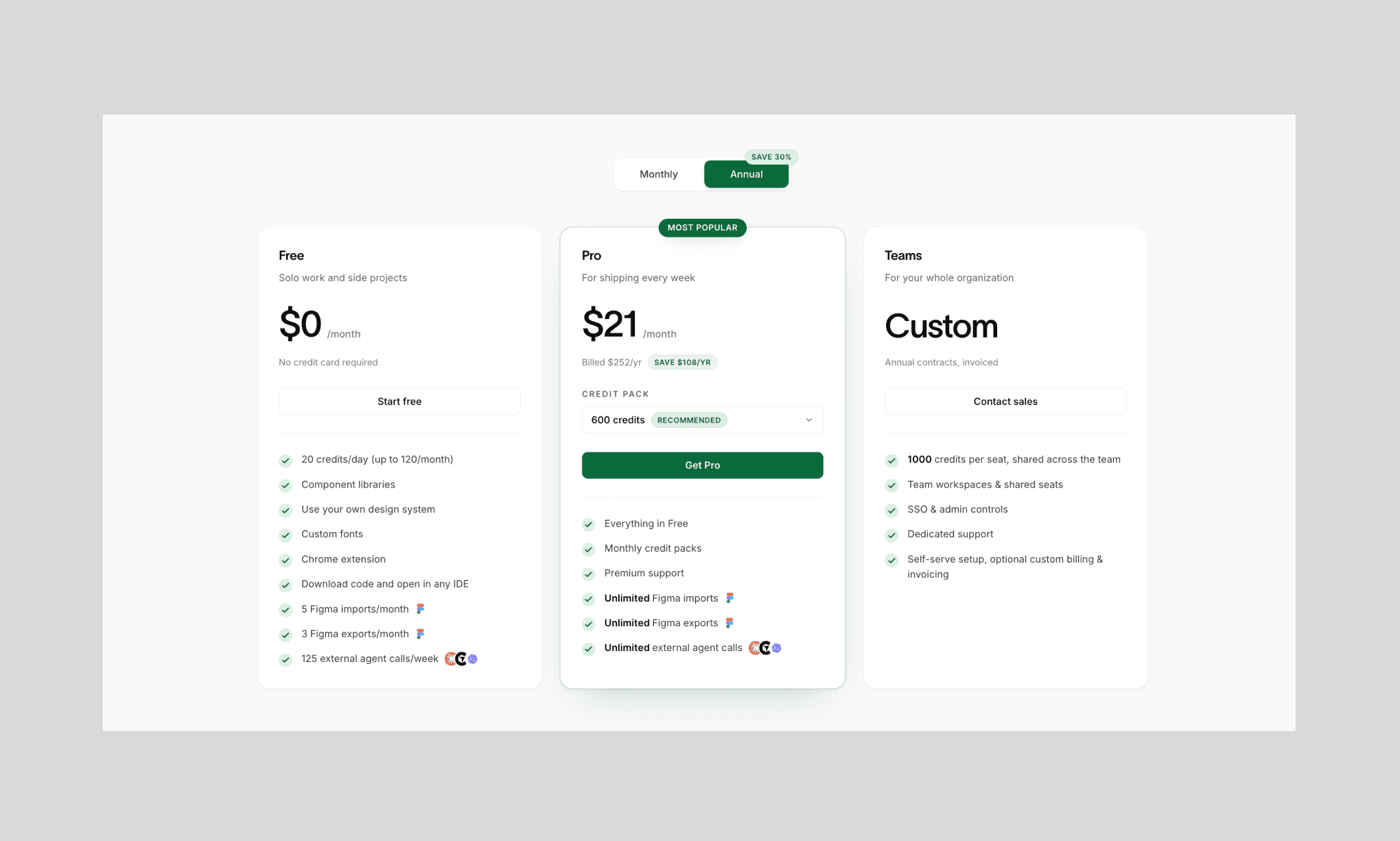
As of 2026, MagicPath works on a freemium pricing model. Its Free tier is basically free forever with no credit card required. You get 20 credits/day (up to 120/month).
Key Features
Component libraries, custom fonts, and design system generator
The Chrome extension for screenshot-to-UI
5 Figma imports and 3 Figma exports per month
125 external agent calls/week.
MagicPath Paid Plans
MagicPath 2.0 has two paid plans: Pro & Teams. As the name suggests they are targeted towards individual builders and startups/agencies.
Plan | Price | Credits | Key Extras |
Pro | $21/mo when billed annually. Else, $30/mo. | 600/mo (recommended) | Unlimited Figma imports & exports, unlimited agent calls, premium support, monthly credit packs |
Teams | Custom | 1,000/seat | Team workspaces, shared seats, SSO & admin controls, dedicated support |
Note: You can increase the monthly limit of credits in MagicPath PRO up to 3,000 at $150/mo.
MagicPath Credit Consumption
Any MagicPath subscription you take (including the Free one), comes with a fixed amount of credits valid for the subscription duration (month or annual). It’s their internal currency used for AI generation/editing.
Key pointers from the their pricing page and my hands-on testing of MagicPath 2.0:
Generating two screens from scratch consumed 10 credits viz. roughly 5 credits per agent action.
A single AI edit (fixing the nav bar across screens) cost 5 credits.
Visual edits, code exports, and sharing cost zero credits.
Figma imports and exports have separate monthly allowances; they don't touch your credit balance
External agent calls (Claude Code, Codex, Cursor) are billed by your agent provider, not MagicPath.
Unused credits don't roll over. Packs reset at the start of each billing cycle.
Compare MagicPath & Banani AI Pricing >
Pros & Cons of MagicPath 2.0
What I Liked | What I Didn't |
Parallel agents build multiple screens at once while keeping everything aligned to the same design system. | Generation took around two minutes per run, which felt slow compared to some alternatives. |
Visual editing is free and works a lot like Figma for quick fixes. | AI-powered edits are costly. A simple navbar change used 5 credits. |
The design system is established before generation starts, helping maintain consistency across screens. | The AI can follow prompts too literally. Mentioning teal once resulted in teal appearing almost everywhere. |
Code export is free and produces clean React, TypeScript, and Tailwind code ready for Cursor, Codex, or Claude Code. | React is the only export option. There is no plain HTML/CSS export. |
Figma export is quick and works better than most AI design tools I tested. | Image export appeared in the interface but did not work during testing. |
External agents like Claude, Codex, and Cursor can connect directly without using MagicPath credits. | Agent names such as Rune and Atlas are mostly branding. You cannot assign different tasks to specific agents. |
The free plan includes every feature, with plans mainly increasing usage limits. | 10 credits for just two screens feels expensive. That's about a third of the free monthly allowance in one session. |
Alternatives to MagicPath AI
Banani: Best UI AI Alternative to MagicPath
Banani generates full UI flows from text or image prompts on an infinite canvas, with a shareable prototype link and direct copy-paste export to Figma. It doubles up as a powerful design-to-code tool with clean HTML/CSS with a click, and connecting coding agents via MCP.
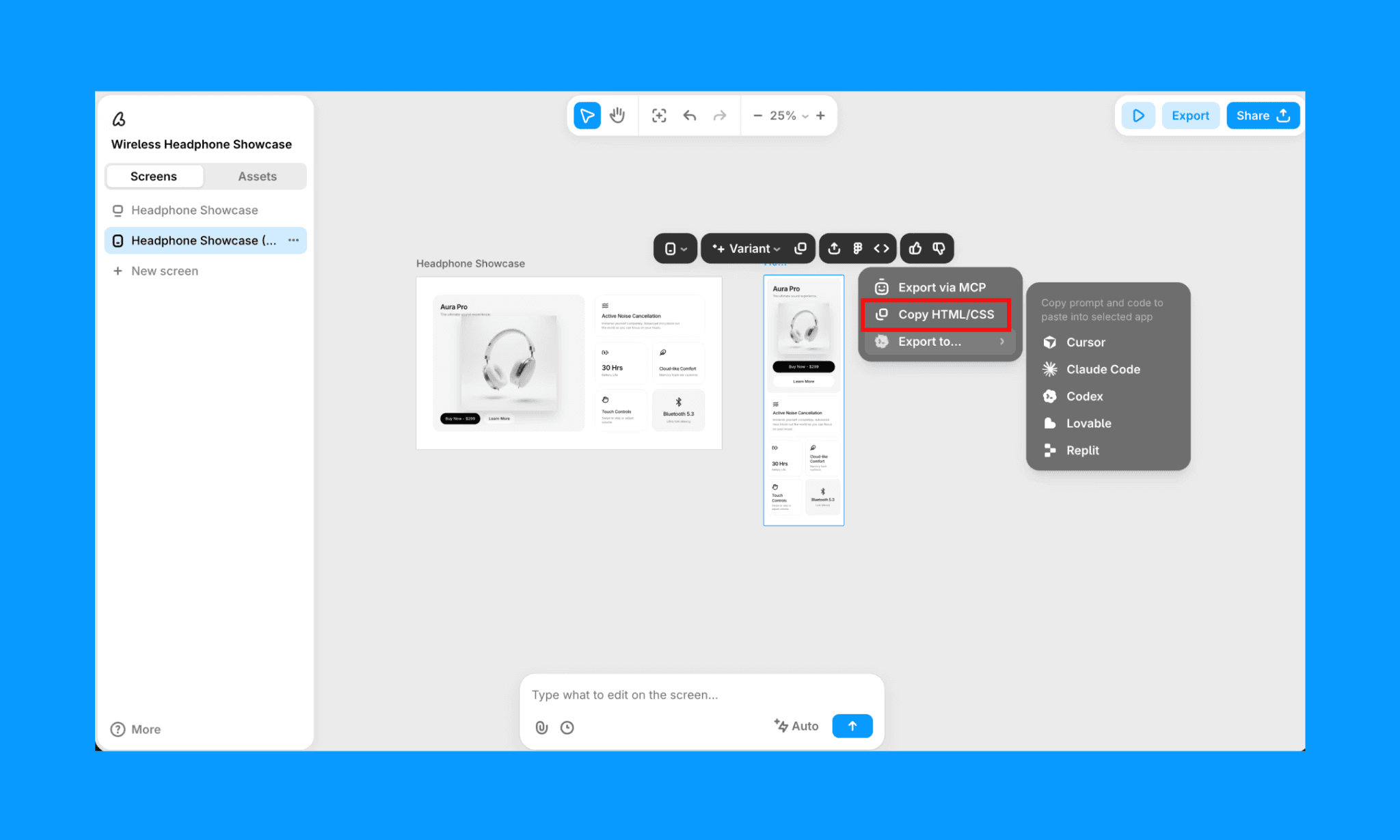
Why choose Banani over MagicPath: If you want design-first output with Figma export and zero concern about burning through credits. Because Banani’s credit system counts 1 credit = 1 generation/edit.
Design UI with Banani AI, free >
Claude Design: Superior Design-to-code Software
Built by Anthropic, Claude Design goes beyond UI. It generates app prototypes, pitch decks, one-pagers, and code-powered experiences with voice, 3D, and effects. Includes design system integration, multiplayer collaboration, and one-click handoff to Claude Code.
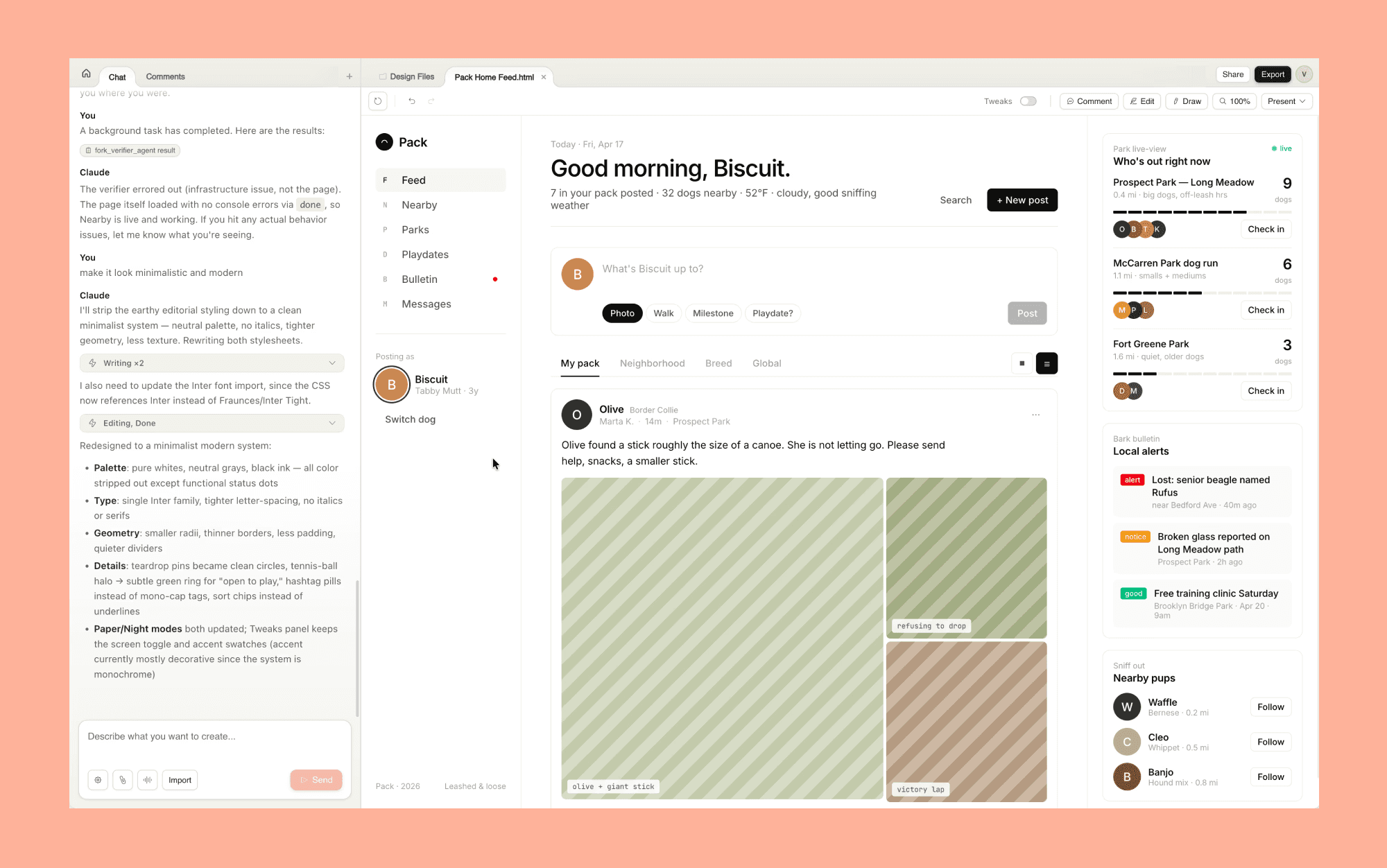
Why choose Claude Design over MagicPath: Broader output range and included in your existing Claude Pro subscription. No separate credit system.
My First Impression of Claude Design >
Lovable: Full-stack AI App Builder with UI Design
Lovable is the leading vibe-coding tool. It generates fully functional, deployable full-stack apps from prompts, not just UI screens. Best for founders and developers who want a working product, not a prototype to hand off.
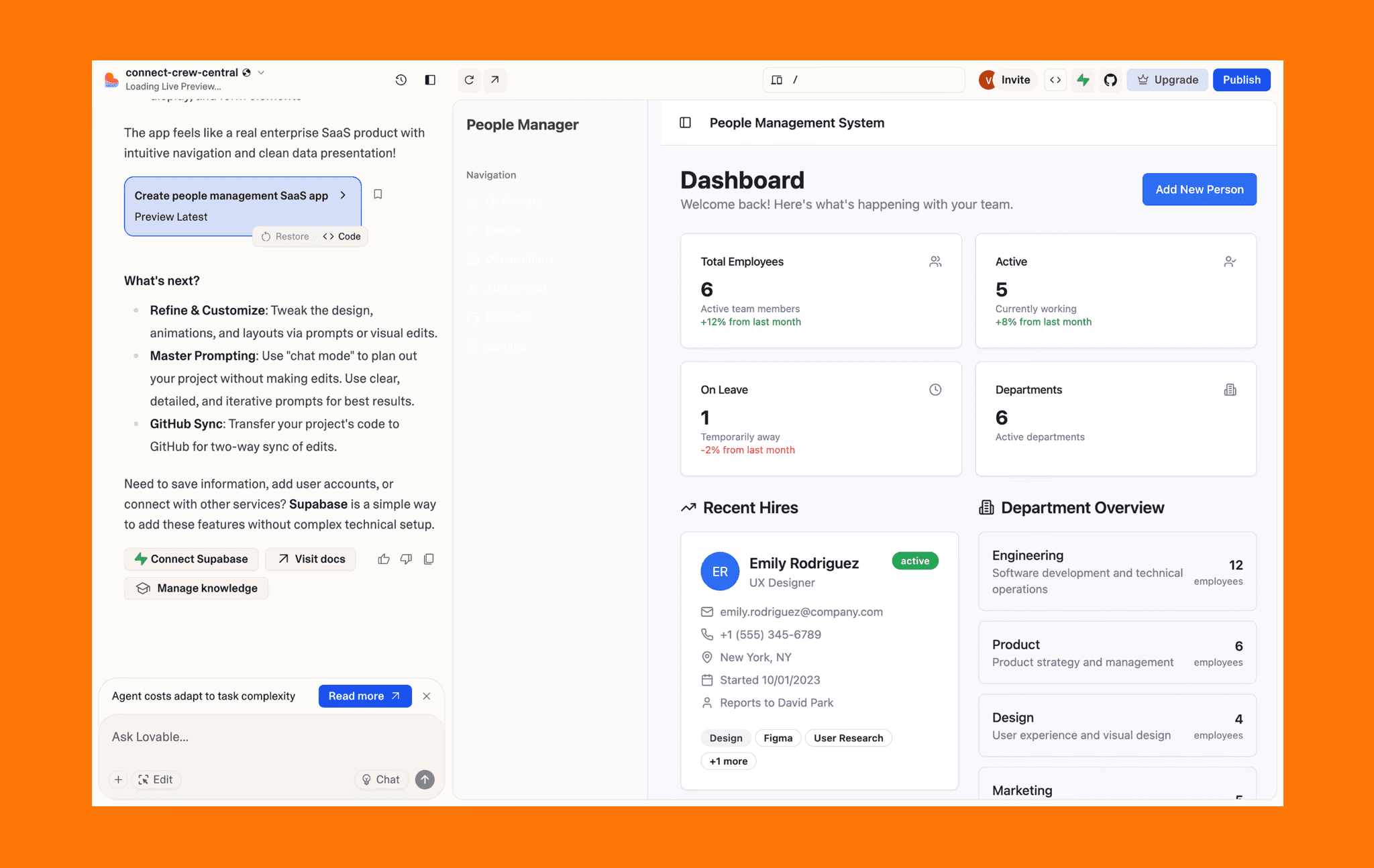
Why choose Lovable over MagicPath: When you need a shippable MVP with UI and code control, not just a design file.
How to Generate Unique UI with Lovable >
Penpot: Open-source UI Design Tool with Code
Penpot is a free, open-source UI design tool with built-in CSS code inspection. By default, there’s no vendor lock-in, but for more custom control and extensive features, you can explore their Enterprise Plans.
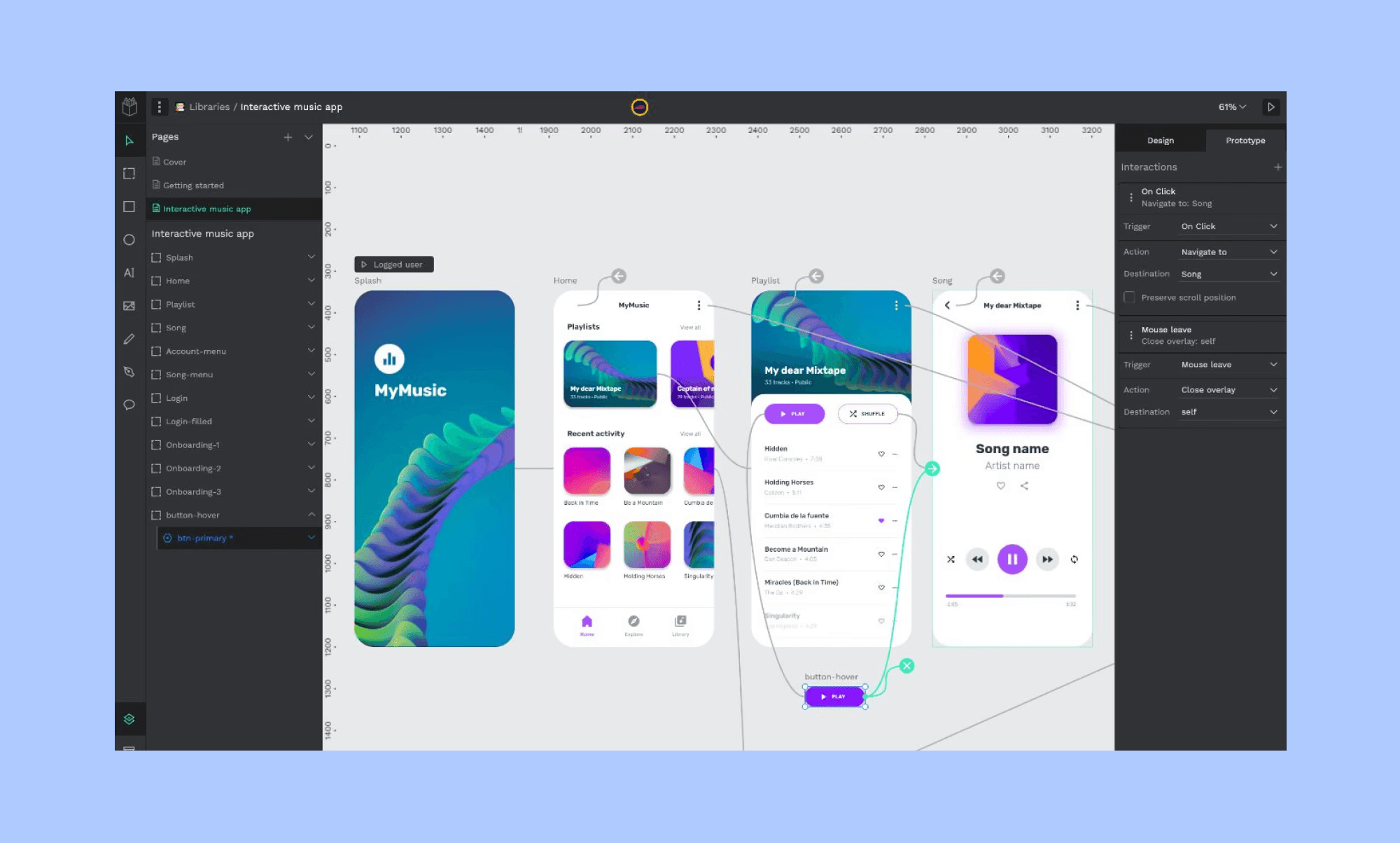
Why choose Penpot over MagicPath: If you want a free, Figma-like design environment with code output and no credit limits.
My Top 2026 MagicPath Alternatives Ranking >
Verdict: MagicPath 2.0 to Try or Not?
MagicPath 2.0 is a solid step forward in the AI design tool ecosystem. Parallel agents, a shared design system, and two-way code sync make it a genuinely useful tool for design-to-code workflows. But noticed that the credits burn fast, generation is slow, and the named agents (Rune, Atlas) are, frankly, cosmetic. You can't direct them by task or skill.
So, my recommendation to founders or PMs prototyping for handoff is: MagicPath 2.0 is worth trying on the free plan and then making your decision based on your specific needs and workflow.
For AI agent-powered design work with faster generation, predictable credits, and cleaner code export, Banani is the better starting point.


