
What Is Design.md and How to Use It (With Examples)

A design.md file defines visual rules (colors, typography, spacing, components) for AI agents to build consistent UIs.

Jump to

Title

Generate UI designs and wireframes with AI

An AI PM's explanation of Design.md file. Including how to get it from Awesome-design-md and using it in Stitch or an AI coding agent.

An AI PM's explanation of Design.md file. Including how to get it from Awesome-design-md and using it in Stitch or an AI coding agent.

What is Design.md?

Design MD is a markdown file that captures all the visual rules that AI coding agents or AI builders use to build consistent user interfaces, including colors, typography, spacing, and component patterns.
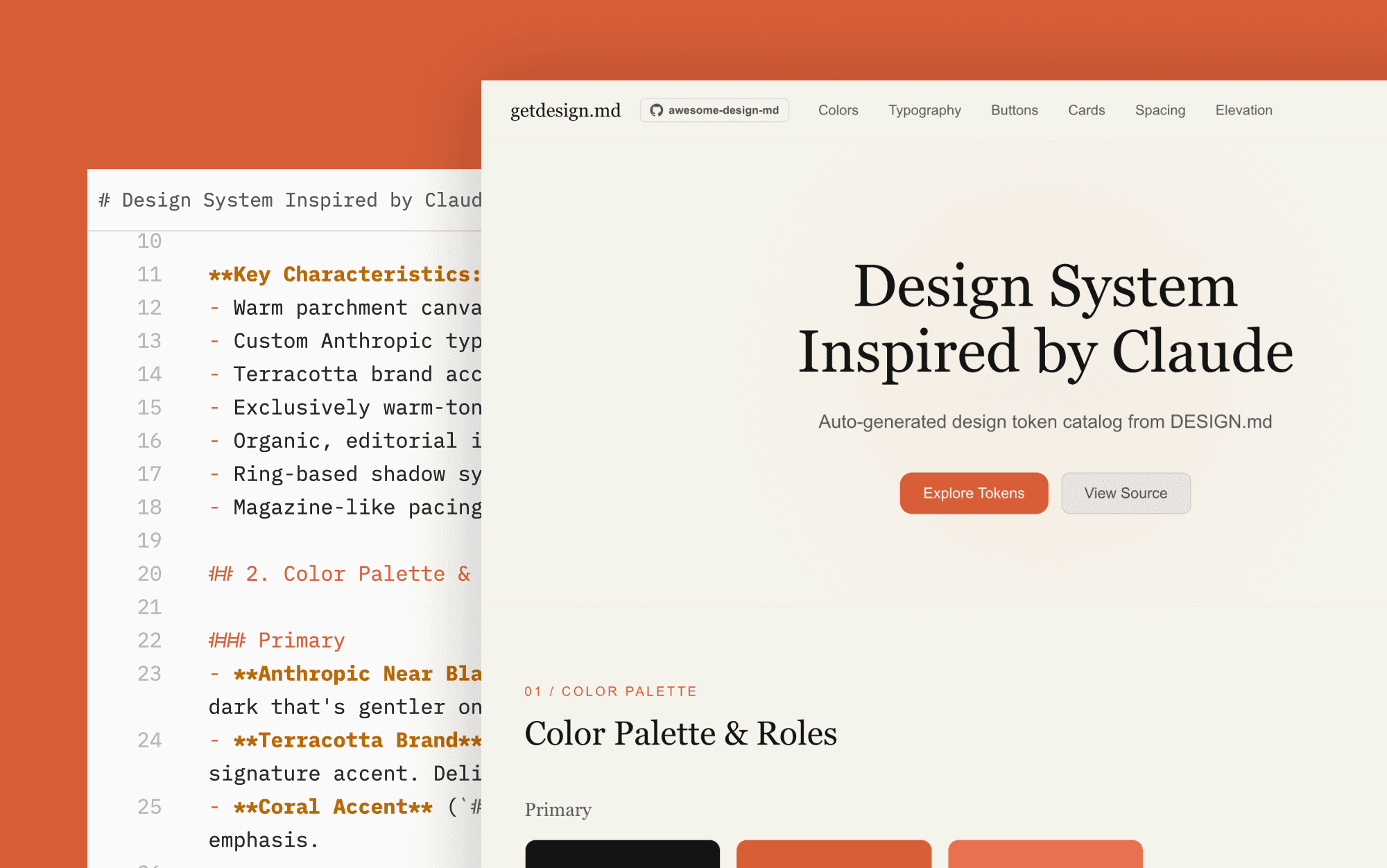
Instead of prompting an agent like Claude or Cursor with vague instructions like "make it look modern and clean," you drop a design.md file into your project root. Agents have access to it and automatically apply your exact styles to everything it designs.

Top AI App Builders of 2026 >

Who created Design.md?

Similar to agents.md, the vibe coding community started experimenting with moving stylistic preferences into a separate md instruction file.

In March 2026, Google added it as part of their new AI design tool, Google Stitch. Stitch uses the file to ensure that every screen or component it generates adheres to a consistent visual language.

While they are not creators, Google made a first "standardisation" proposal, of what and in which order should be included.

Is Google Stitch Really Free in 2026? >

Structure of Design.md: Example

There are no hard rules on how to structure design.md, but usually the file is structured into clear sections that define the visual primitives of a project.

  • Colors: Primary palettes, neutral scales, and semantic colors (success, warning, error) with exact hex codes and usage guidance.

  • Typography: Font families, size scales, weights, and line heights for headings and body text.

  • Spacing: The base unit (usually 4px or 8px) and the scale values used for padding, margins, and gaps.

  • Components: Specific styling rules for common elements like buttons, inputs, and cards, including border radius and border styles.

  • Elevation: Shadow values and depth cues for layered interfaces.

Here is a minimal example of what the file looks like in practice:

## Colors
- **Primary** (#1A73E8): Main brand color for buttons and links
- **Background** (#FFFFFF): Page background
- **Surface** (#F8F9FA): Cards and elevated surfaces
- **Text Primary** (#202124): Main text color
  
## Typography  
- **Heading 1**: Inter, 32px, 700 weight- **Body**: Inter, 16px, 400 weight
  
## Components
- **Buttons**: Primary filled (bg #1A73E8, white text, 8px radius)
- **Cards**: White bg, 1px solid #E8EAED border, 12px radius

How to Create a Design.md File?

You do not need to write a DESIGN.md file from scratch. The community has already built extensive libraries of ready-to-use design systems.

Awesome-design-md (GitHub Repo)
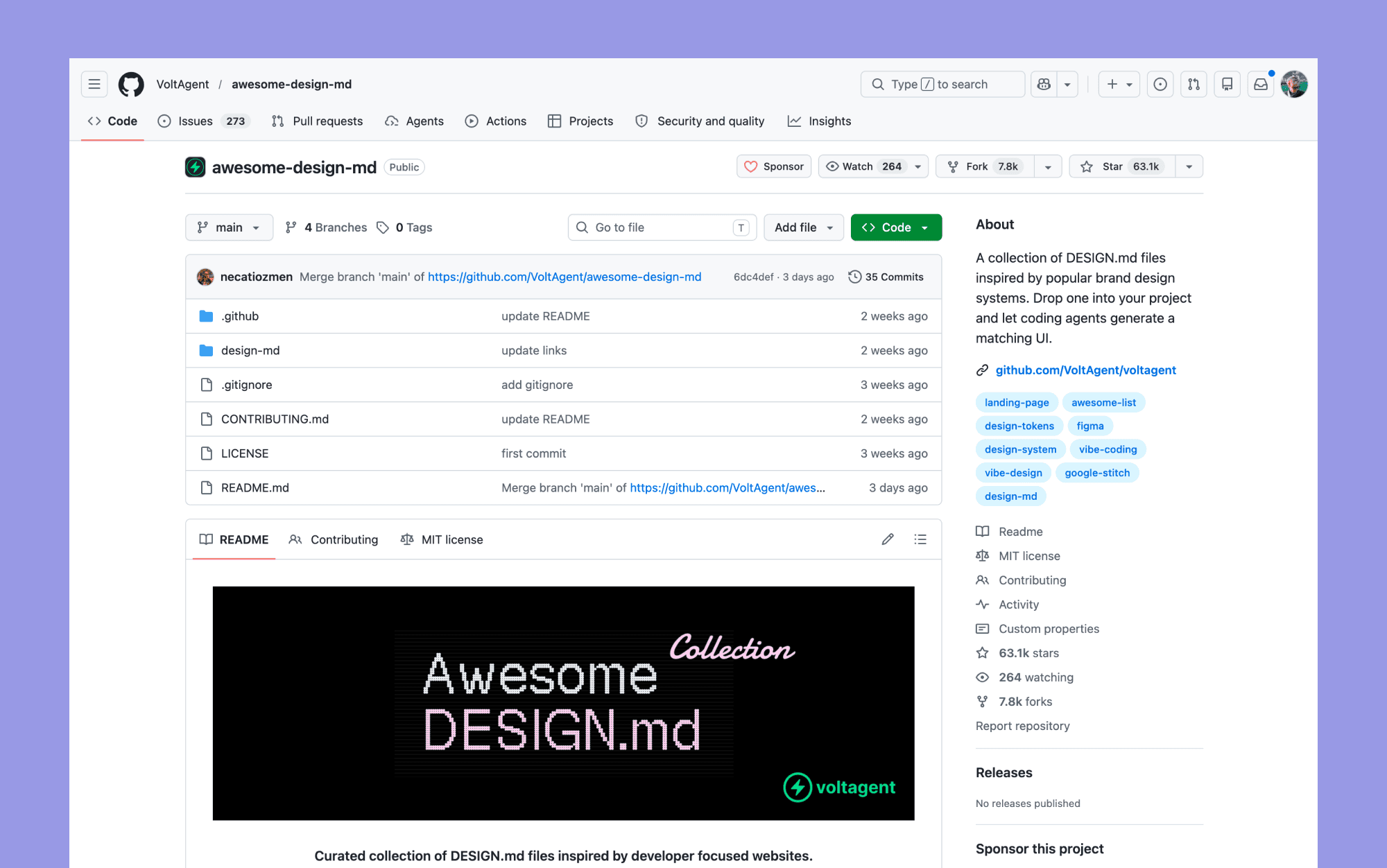
The most popular resource is the awesome-design-md GitHub repository maintained by VoltAgent. It contains a curated collection of Design.md files inspired by popular developer-focused websites and tech brands.

You can find files that replicate the exact design systems of companies like:

  • Claude: Warm terracotta accents with a clean editorial layout

  • Vercel: Black and white precision with the Geist font

  • Stripe: Signature purple gradients and elegant typography

  • Linear: Ultra-minimal, precise, with purple accents

  • Airbnb: Warm coral accents and rounded UI elements

DESIGNmd.ai
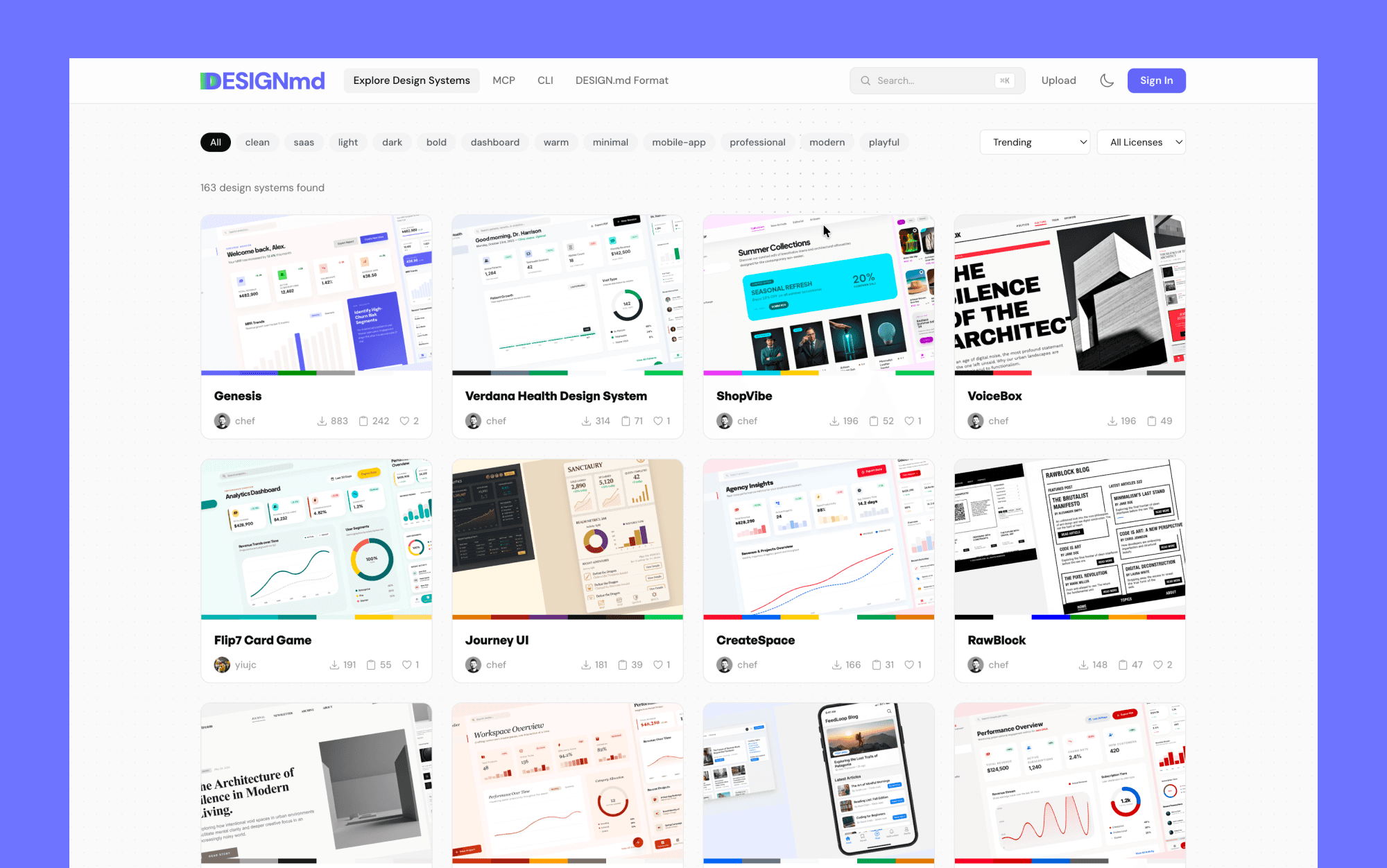
Another excellent resource is designmd.ai, a community platform hosting over 100 free design systems. You can browse by tags like "dark", "saas", "minimal", or "fintech", and download the corresponding markdown file directly.

DESIGN.md Generator (Figma Plugin)
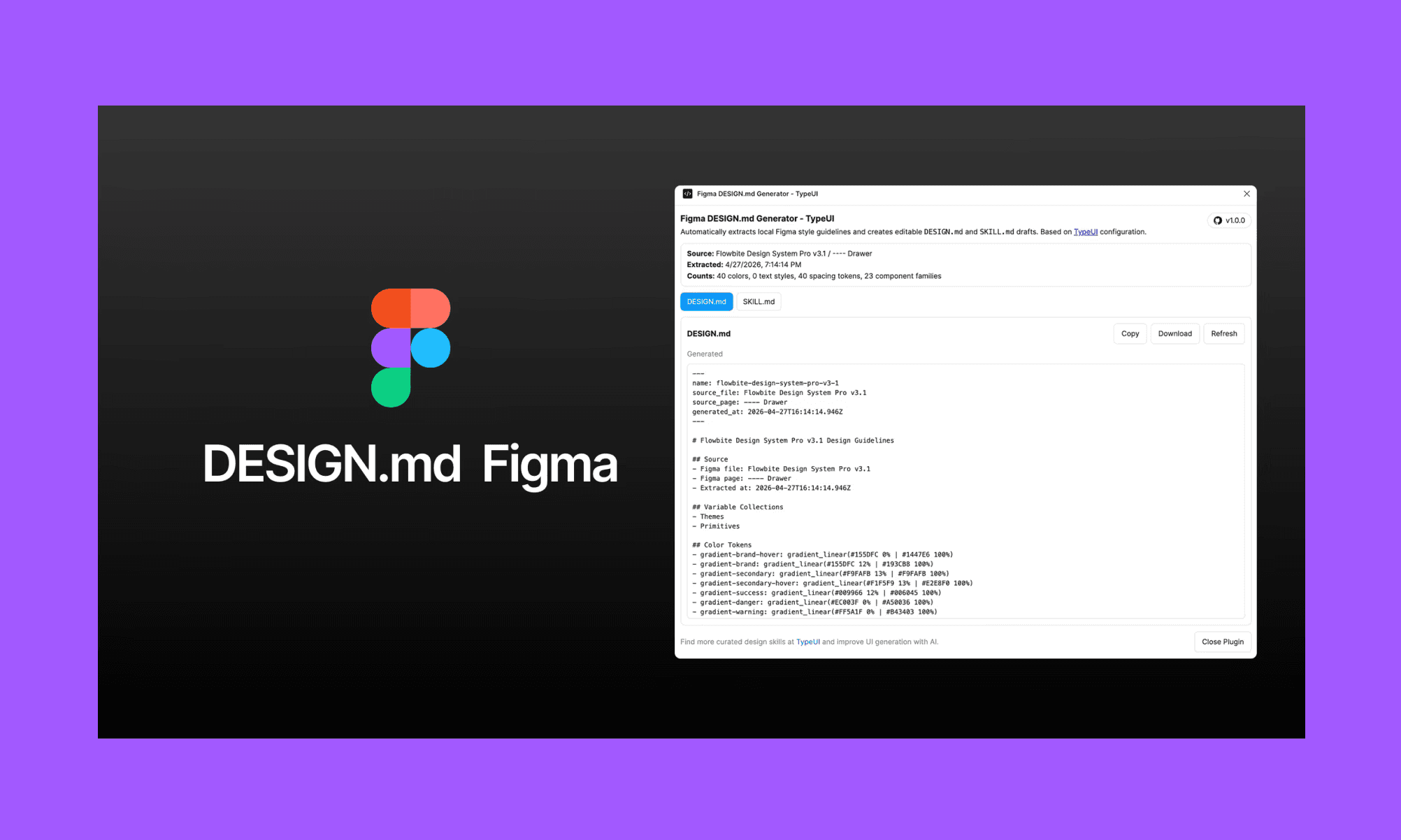
If you're already in Figma, the DESIGN.md Generator plugin can scan your file and auto-extract colors, typography, spacing, and components into a ready-to-use markdown file. Paste it into Claude Code, Cursor, or any AI app builder for instant design system hand-off.

Try a Design System Generator, Free >

How to Use Design.md?

Implementing a DESIGN.md file in your workflow with AI agents is incredibly straightforward.

The manual method

  1. Download a Design.md file from one of the resources above, or write your own.

  2. Drop the file into the root directory of your project, right next to your agents.md or claude.md files.

  3. When prompting your AI coding agent (like Claude Code, Cursor, or Lovable), explicitly tell it to reference the file. For example: “Build a pricing page and use the @DESIGN.md file for all styling decisions”.

AI UI Tool method

Modern AI UI design tools, like Banani AI, automatically generate and update design.md files while you're generating designs.
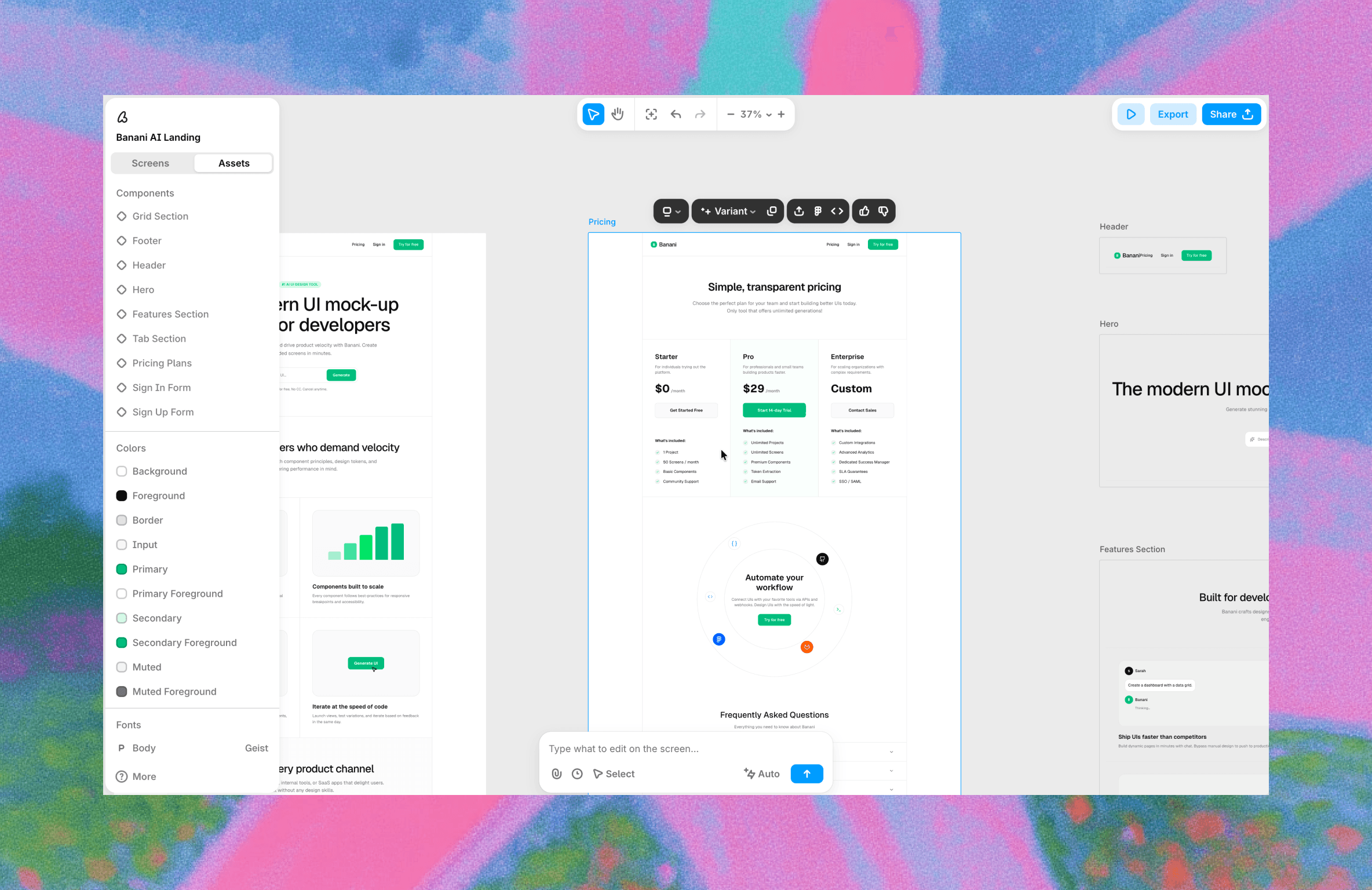
Banani specifically clarifies what design styles are while you are creating a project, removing the need to do it manually on your own. If the visual preferences of the project you are generating with AI change, it will update it on the fly, so you can always have an up-to-date .md file.

You can also use its MCP server so that your coding agents have access to the latest version.

Design UI with Banani AI, Free >

Should I Use design.md?

If you are using AI agents to generate user interfaces, adding a design.md file to your workflow is one of the highest-leverage improvements you can make. In fact, with it, you can solve a big issue of both vibe coding and vibe designing in one go: generic sloppy design styles to which all coding agents default to.

It hardly takes a minute to download a file from the awesome-design-md repository, a Figma plugin, and drop it into your project. The resulting improvement in UI consistency is immediate and obvious.

Alternatively, if you wish to start designing and create a design.md file on the go to use later, start with Banani AI UI Generator. It creates a design system in its canvas (as a proxy of the Design MD file) that updates itself in real-time per your latest design version, is editable and can be referenced across your app design project.

FAQs on Desing.md file

How to write a design.md?

Start with a brand overview, then document your colors (hex codes and usage), typography (fonts, sizes, weights), spacing rules (base unit and scale), and component styling. Use clear markdown headings and include concrete examples, like "Primary button: #1A73E8 background, white text, 8px radius."
This gives AI agents specific rules to follow instead of vague instructions.

You can use Banani AI UI Designer to create a design system like design.md file.

What is the MD in design.md file?

MD stands for Markdown. It's a simple, plain-text file format (.md extension) that's easy to read and write. Markdown uses basic syntax (like # for headings, - for lists) to structure content, making it perfect for documentation that AI agents can easily parse and understand.

How to use design.md in Google Stitch?

If you already have a design.md file, then ideally, when you start vibe designing a new project in Google Stitch, upload it as input. You will have to write a prompt to use the design.md as a reference. For instance: "Generate an employee HR app onboarding UIs using the @design.md file for all styling decisions."

Stitch reads the file and applies your color, typography, and component rules automatically, ensuring consistency across every generated screen.


What is Design.md?

Design MD is a markdown file that captures all the visual rules that AI coding agents or AI builders use to build consistent user interfaces, including colors, typography, spacing, and component patterns.

Instead of prompting an agent like Claude or Cursor with vague instructions like "make it look modern and clean," you drop a design.md file into your project root. Agents have access to it and automatically apply your exact styles to everything it designs.

Top AI App Builders of 2026 >

Who created Design.md?

Similar to agents.md, the vibe coding community started experimenting with moving stylistic preferences into a separate md instruction file.

In March 2026, Google added it as part of their new AI design tool, Google Stitch. Stitch uses the file to ensure that every screen or component it generates adheres to a consistent visual language.

While they are not creators, Google made a first "standardisation" proposal, of what and in which order should be included.

Is Google Stitch Really Free in 2026? >

Structure of Design.md: Example

There are no hard rules on how to structure design.md, but usually the file is structured into clear sections that define the visual primitives of a project.

  • Colors: Primary palettes, neutral scales, and semantic colors (success, warning, error) with exact hex codes and usage guidance.

  • Typography: Font families, size scales, weights, and line heights for headings and body text.

  • Spacing: The base unit (usually 4px or 8px) and the scale values used for padding, margins, and gaps.

  • Components: Specific styling rules for common elements like buttons, inputs, and cards, including border radius and border styles.

  • Elevation: Shadow values and depth cues for layered interfaces.

Here is a minimal example of what the file looks like in practice:

## Colors
- **Primary** (#1A73E8): Main brand color for buttons and links
- **Background** (#FFFFFF): Page background
- **Surface** (#F8F9FA): Cards and elevated surfaces
- **Text Primary** (#202124): Main text color
  
## Typography  
- **Heading 1**: Inter, 32px, 700 weight- **Body**: Inter, 16px, 400 weight
  
## Components
- **Buttons**: Primary filled (bg #1A73E8, white text, 8px radius)
- **Cards**: White bg, 1px solid #E8EAED border, 12px radius

How to Create a Design.md File?

You do not need to write a DESIGN.md file from scratch. The community has already built extensive libraries of ready-to-use design systems.

Awesome-design-md (GitHub Repo)

The most popular resource is the awesome-design-md GitHub repository maintained by VoltAgent. It contains a curated collection of Design.md files inspired by popular developer-focused websites and tech brands.

You can find files that replicate the exact design systems of companies like:

  • Claude: Warm terracotta accents with a clean editorial layout

  • Vercel: Black and white precision with the Geist font

  • Stripe: Signature purple gradients and elegant typography

  • Linear: Ultra-minimal, precise, with purple accents

  • Airbnb: Warm coral accents and rounded UI elements

DESIGNmd.ai

Another excellent resource is designmd.ai, a community platform hosting over 100 free design systems. You can browse by tags like "dark", "saas", "minimal", or "fintech", and download the corresponding markdown file directly.

DESIGN.md Generator (Figma Plugin)

If you're already in Figma, the DESIGN.md Generator plugin can scan your file and auto-extract colors, typography, spacing, and components into a ready-to-use markdown file. Paste it into Claude Code, Cursor, or any AI app builder for instant design system hand-off.

Try a Design System Generator, Free >

How to Use Design.md?

Implementing a DESIGN.md file in your workflow with AI agents is incredibly straightforward.

The manual method

  1. Download a Design.md file from one of the resources above, or write your own.

  2. Drop the file into the root directory of your project, right next to your agents.md or claude.md files.

  3. When prompting your AI coding agent (like Claude Code, Cursor, or Lovable), explicitly tell it to reference the file. For example: “Build a pricing page and use the @DESIGN.md file for all styling decisions”.

AI UI Tool method

Modern AI UI design tools, like Banani AI, automatically generate and update design.md files while you're generating designs.

Banani specifically clarifies what design styles are while you are creating a project, removing the need to do it manually on your own. If the visual preferences of the project you are generating with AI change, it will update it on the fly, so you can always have an up-to-date .md file.

You can also use its MCP server so that your coding agents have access to the latest version.

Design UI with Banani AI, Free >

Should I Use design.md?

If you are using AI agents to generate user interfaces, adding a design.md file to your workflow is one of the highest-leverage improvements you can make. In fact, with it, you can solve a big issue of both vibe coding and vibe designing in one go: generic sloppy design styles to which all coding agents default to.

It hardly takes a minute to download a file from the awesome-design-md repository, a Figma plugin, and drop it into your project. The resulting improvement in UI consistency is immediate and obvious.

Alternatively, if you wish to start designing and create a design.md file on the go to use later, start with Banani AI UI Generator. It creates a design system in its canvas (as a proxy of the Design MD file) that updates itself in real-time per your latest design version, is editable and can be referenced across your app design project.

FAQs on Desing.md file

How to write a design.md?

Start with a brand overview, then document your colors (hex codes and usage), typography (fonts, sizes, weights), spacing rules (base unit and scale), and component styling. Use clear markdown headings and include concrete examples, like "Primary button: #1A73E8 background, white text, 8px radius."
This gives AI agents specific rules to follow instead of vague instructions.

You can use Banani AI UI Designer to create a design system like design.md file.

What is the MD in design.md file?

MD stands for Markdown. It's a simple, plain-text file format (.md extension) that's easy to read and write. Markdown uses basic syntax (like # for headings, - for lists) to structure content, making it perfect for documentation that AI agents can easily parse and understand.

How to use design.md in Google Stitch?

If you already have a design.md file, then ideally, when you start vibe designing a new project in Google Stitch, upload it as input. You will have to write a prompt to use the design.md as a reference. For instance: "Generate an employee HR app onboarding UIs using the @design.md file for all styling decisions."

Stitch reads the file and applies your color, typography, and component rules automatically, ensuring consistency across every generated screen.


Generate UI designs using AI

Convert your ideas into beautiful and user-friendly designs. Fast and easy.